



How to verify identity using facial recognition (Liveness Detection)
How to grant camera access
Guide to granting camera access on IOS
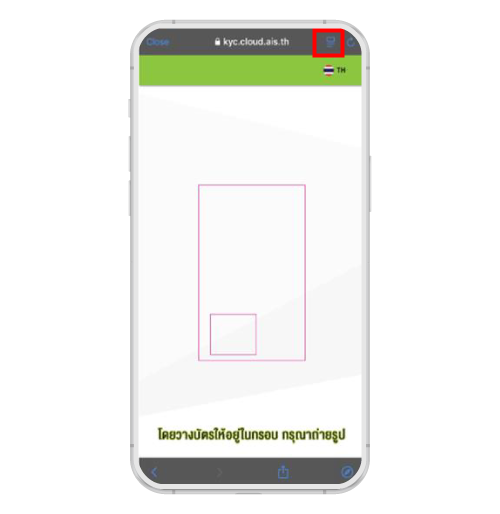
1.Tap the icon shown in the picture
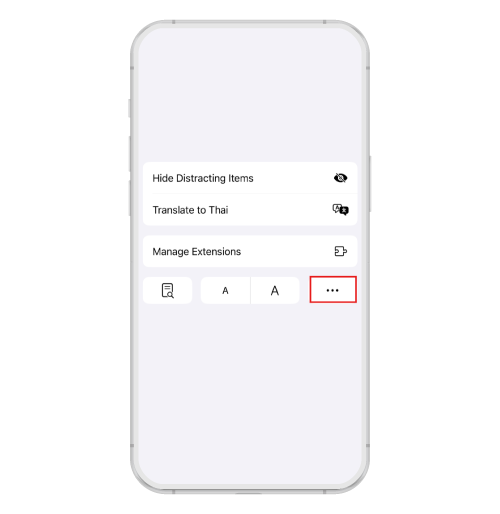
2.Tap the three‑dot button
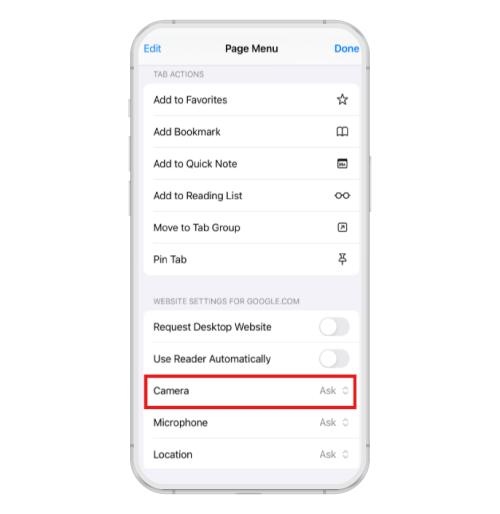
3.Select Camera to open camera settings
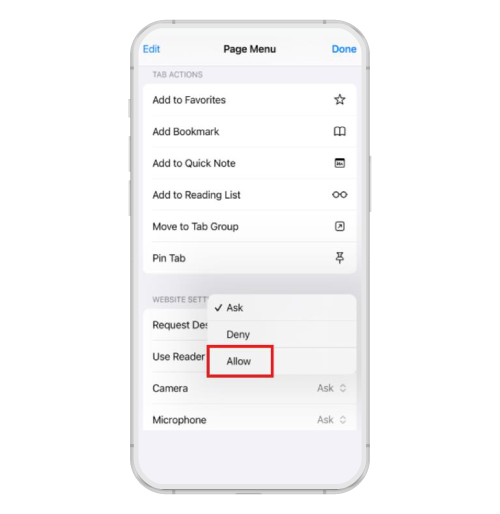
4.Tap Allow to grant camera access
Guide to granting camera access on Android
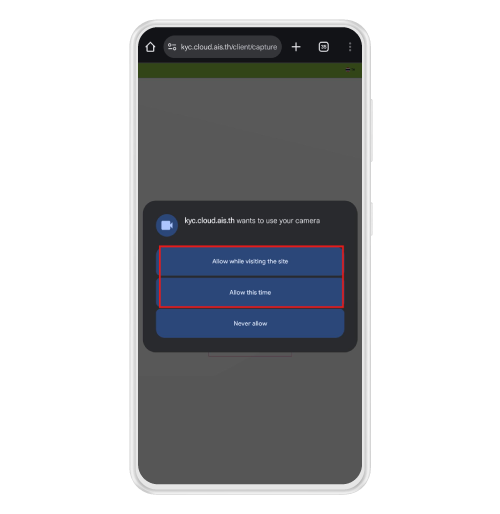
When you enter the KYC screen, a permission pop‑up will appear requesting camera access. You can select Allow in either option, as shown in the picture highlighted with a red box.
How to scan an identity card
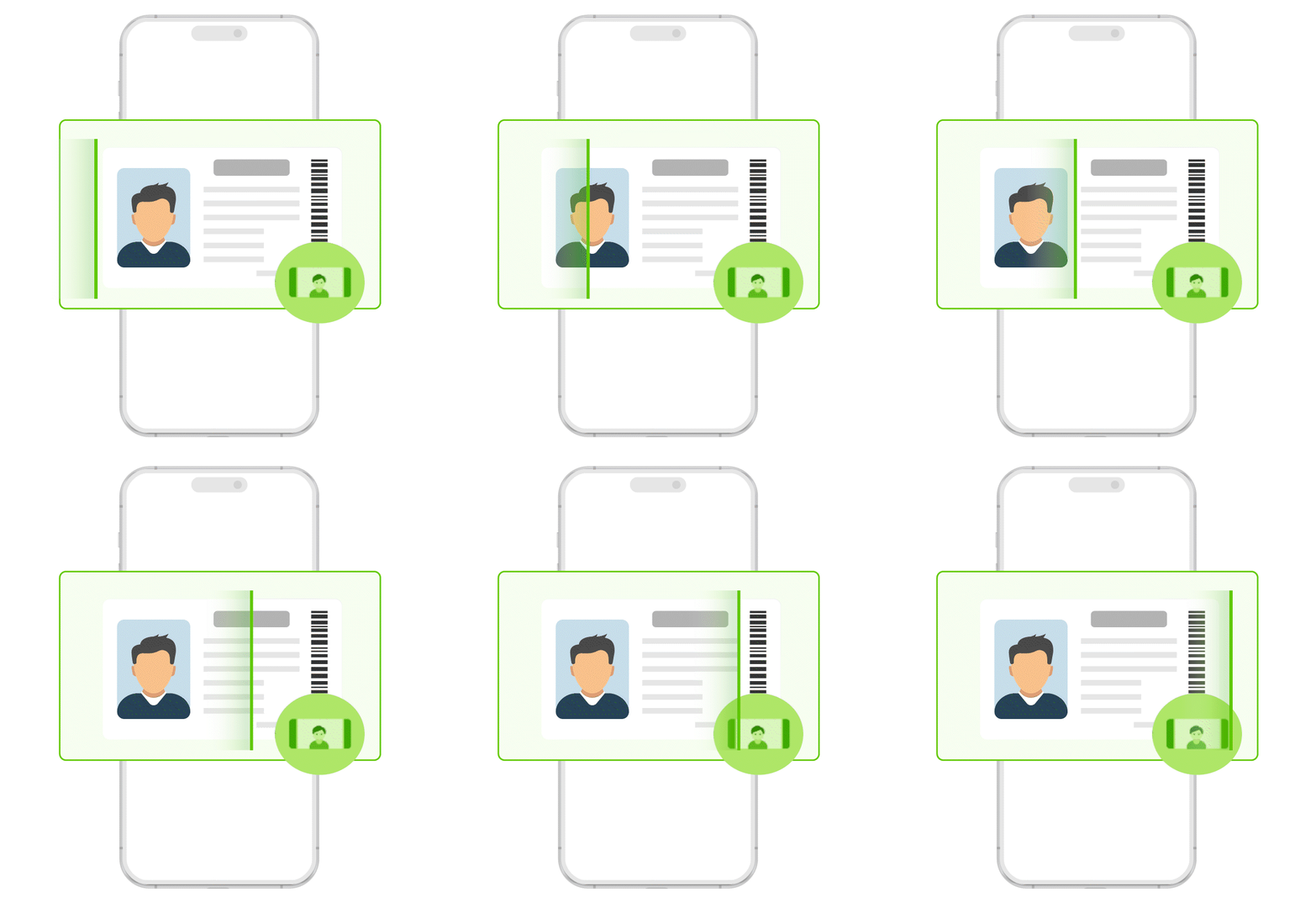

The photo on the identity card must be clear and visible.

Place the card in sufficient lighting, avoiding shadows and reflections on its surface.

Align the camera frame of your mobile phone with the card so that both text and photo are clearly visible.

Hold the device steady and tap Scan
Note If the photo or information on your identity card is unclear or faded, please obtain a new identity card and then redo the verification process.
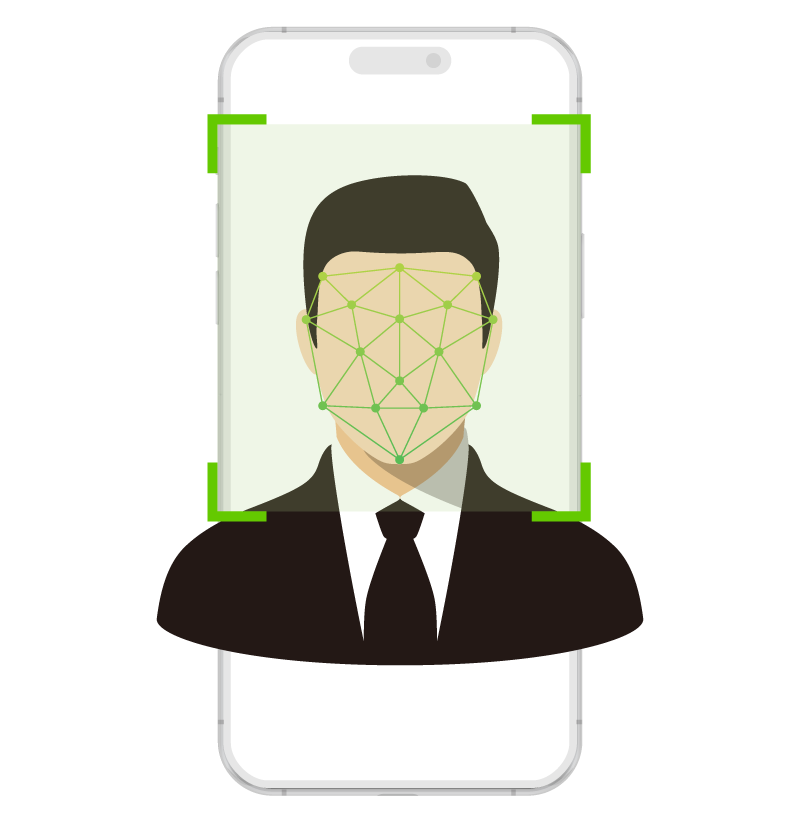
How to perform a liveness verification (facial scan)







© 2026 Advanced Info Service PLC. All rights reserved.